
This update introduces a new Shopify integration method, a new Trade-In ROI report for performance analysis, and backend improvements designed to improve reporting visibility and overall system reliability.
New Shopify Integration Method
A new method for connecting Grindless to Shopify is now available. This updated integration allows customer records created in Grindless to also be created automatically in Shopify.
Stores that were previously waiting to connect Grindless with Shopify may now proceed using the new connection process.
How to request access:
- Request integration from Grindless Support using the Report Problem button in the POS, or by emailing support@grindless.com.
- Include your Shopify Admin URL (for example: yourstore.myshopify.com).
- Grindless Support will provide your Client ID, API Secret, and App Installation Link.
Connection process:
- Log in to Grindless and ensure you are connected to your main/master store.
- Navigate to Settings > Channels > Shopify and select Change.
- Enter the Client ID and API Secret provided by Grindless Support.
- Enter your Shopify store slug and click Continue.
- Use the installation link provided by Grindless Support to install the app in Shopify.
- Once installation is complete, return to Grindless and select the store location to associate with the Shopify integration.
- Choose the desired integration settings and click Save.
Trade-In ROI Report
A new report has been added to help evaluate the performance of trade-in activity. This is a simple, yet powerful report that helps you understand a variety of metrics pertaining to the trades that your store conducts over time.
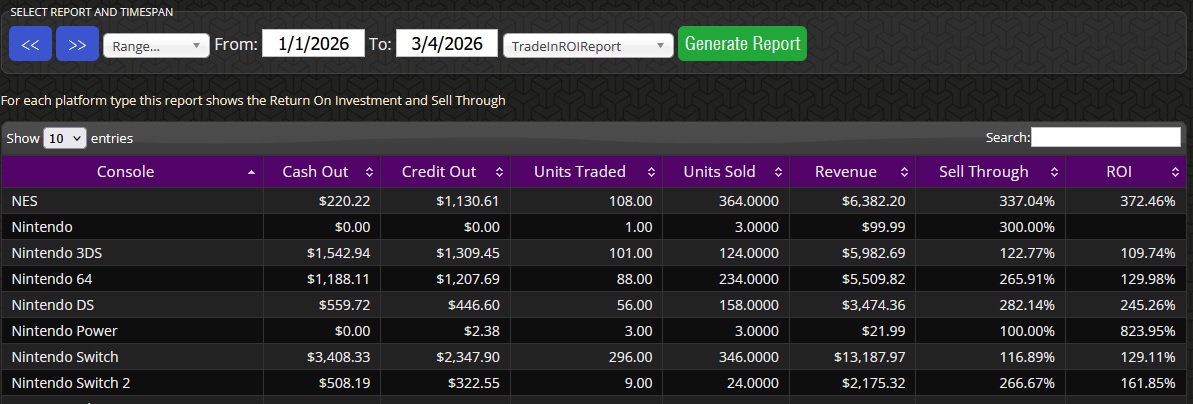
This report shows how much money you’ve paid out, how many items were traded, sold, and revenue earned for those trades. Results are grouped by “Console” (i.e. Xbox 360, PlayStation 5, MTG, Pokemon, etc) to allow you to view the performance of each type of item. This new report helps compare inventory intake versus outgoing sales, as well as total value spent on trade-ins versus revenue generated.
- Available under Reports > Performance Reports > Trade-In ROI Report.
- Provides visibility into trade-related inventory movement and financial performance, including:
- Cash Out: How much cash was paid for items traded in.
- Credit Out: Similar to Cash Out, but for in-store credit given to customers.
- Units Traded: Total number of individual items traded in.
- Units Sold: Number of individual items sold for each Console.
- Revenue Earned: Money earned from the sale of each type (Console) of item.
- Sell Through: Percentage of Units Traded to Units Sold.
- ROI (Return on Investment): Percentage showing how much your store earned compared to the value given to customers for those items.
- Can assist in identifying platforms or product categories that may be underperforming relative to buying activity.
System Improvements
- Backend improvements have been implemented across multiple areas of the system to improve overall performance and reliability.
Thank you to our users who submit problem reports to alert us about issues and submit feedback or suggestions.