
This update includes improvements to store-to-store transfers, multi-store reporting, trade-in intake, customer importing, product data, interface clarity, and several important bug fixes.
Store-to-Store Transfer Improvements
The process for transferring products between stores from the Sales screen has been improved.
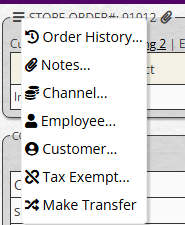
To create a transfer, start a sale for the appropriate System Customer that represents the receiving location, add products to the order, then use the Make Transfer option.
This new process improves the previous workflow in several ways:
- Items are transferred at their current cost, so you no longer need to manually discount items or adjust coupons.
- Shipping does not need to be added to the transfer order.
- The order does not need to be manually marked as shipped afterward.
- Transfer orders are now handled separately from normal sales activity in several reports so as to not affect sales data.
Transfer orders are now excluded from the following reports where appropriate:
- Trade-In ROI Report
- Employee Performance Report
- Multi-Store Sales By Product
- Multi-Store Single Product Report
- Single Store Sales By Product
- Single Store Single Product Report
- Single Store Sales By Product for a single employee
Multi-Store Payments and Single Store Payments reports will continue to include transfer orders.
Multi-Store Reports
A new MultiStore page has been added to the Reports screen.
This page currently includes three reports:
- Total Payments: Similar to the Payments table from Bookkeeping Reports.
- Detailed Product Sales Report: Similar to the Sales By Product table from Sales Reports.
- Trade-Ins Report: Similar to the Trade-Ins Summary table from Sales Reports.
Trade-In Intake Improvements
- A new Value column has been added to the Trade-In Intake page.
- This value reflects the item’s Resale price at the time it was traded in.
- The Value column can be used to better sort, review, and approve items based on approximate value.
TCGplayer App Importing – visual card scanning
- You can now use the TCGplayer app to visually scan cards and import those scanned cards into Grindless. Scanned cards can be imported into a trade-in OR added directly to your store’s inventory (outside of a trade) by clicking “Import” on the trade-in screen. Then, choose the TCGGamePlayer option from the drop-menu when importing your CSV from TCGplayer’s app.
- 2 video tutorials have been published on our website bothat grindless.com/training (scroll down in this update to watch either/both videos)
- Video 1: Scanning cards using TCGplayer’s mobile app
- Video 2: Importing CSV lists of scanned cards into the POS
Customer Importing Improvements
- Customer imports now support using the CustomerID value to update existing customer accounts.
- This helps ensure the correct customer records are updated and reduces the chance of accidentally creating duplicate customer accounts.
Pokemon Singles Cleanup
- Fixed an issue where thousands of Pokemon cards that were only available as foil were also showing a non-foil variant in Grindless.
- Those incorrect non-foil variants have been removed and should not return.
Interface and Platform Updates
- Several action menus now use a clearer stacked line icon instead of the previous three-dot icon. This change applies to areas such as the Start page and Manage Products pages.
From to
to 
- The Sales screen now also includes this icon to house transfer options and other available order actions.
- Significant backend improvements have been completed to move several underlying systems to a more modern framework.
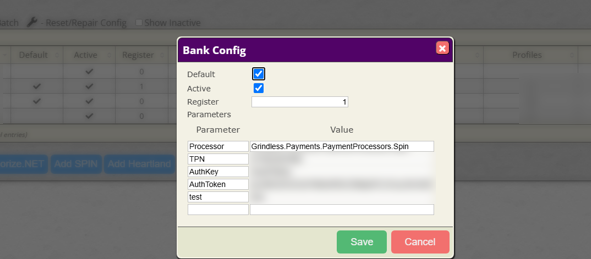
- As part of this modernization, some areas of the interface may have minor visual differences, though no major workflow changes are required.
Example of modernization (as seen from the Bank Configs configuration screen):
Before

After
Bug Fixes
- Fixed an issue where the {CUSTOMER} macro on the Trade-In Agreement was not being replaced with the customer’s actual name.
- Fixed an issue where a layaway order could become stuck if the order was cancelled at the wrong time.
- Fixed an issue where products could be imported as a normal product import from the supplier order import process.
- Fixed an issue where the Add New button on the Manage Club page was incorrectly shown from a child store (affects multi-store clients).
- Improved how the system recognizes items with reserved quantities, resolving timeout issues on the Items to Pick-Up Report.
- Fixed an issue affecting the timezone used for payout timestamps.
- Fixed an issue where the Description used in formulas in Trade-In profiles could override a product’s description that had previously been manually set.
- Fixed an issue where an order deactivated from the Surplus Exchange could not be used to create a new listing.
- Improved header navigation so it resizes more appropriately based on enabled modules and screen resolutions.
New Tutorial Videos
As mentioned above, you can now scan trading cards using TCGplayer’s mobile app and export a list of scanned cards to use in the Grindless POS. We have created two videos that demonstrate the procedure.
The first video covers how to use TCGplayer’s app to scan cards and generate a list. This video may be shared with your customers, if desired.
The second video covers how to import a list of cards generated from TCGplayer’s app (or other bulk scanning devices) into the Grindless POS for easier handling of large trades.